LoRaWAN Gateway Dashboard
LoRaWAN Gateway and various sensor/actuator devices can be set and checked.
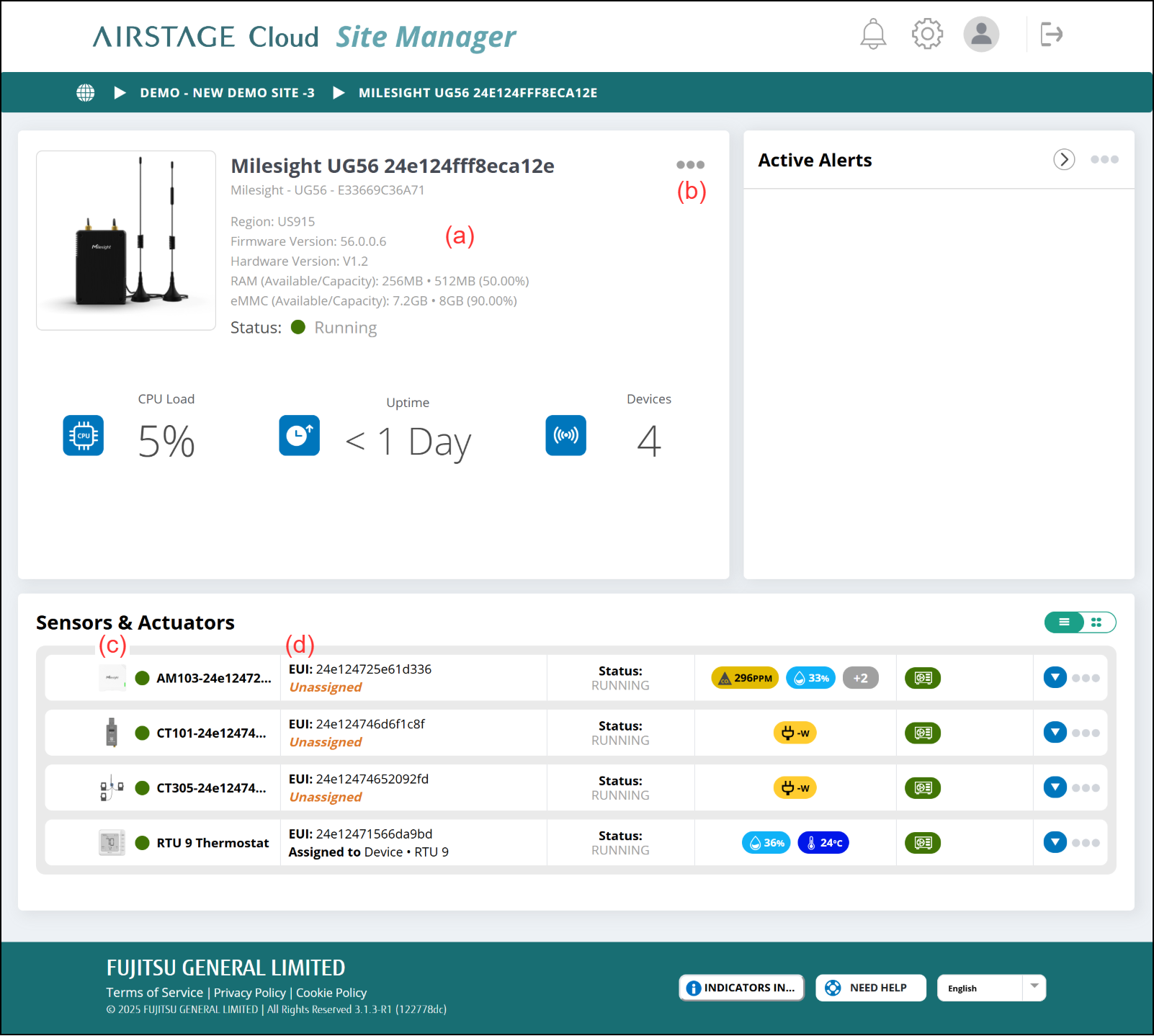
(a) LoRaWAN Gateway information
Various Gateway information is displayed.
(b) Link menu
- [Configure]
Displays the "Gateway Configuration" window.
(c) Image link
Different “View Device” windows are displayed depending on AM103, CT101/CT305, and WT201.
(d) EUI
EUI means Individual Device ID on LoRaWAN communication network.
Gateway Configuration Window
Gateway can be set.
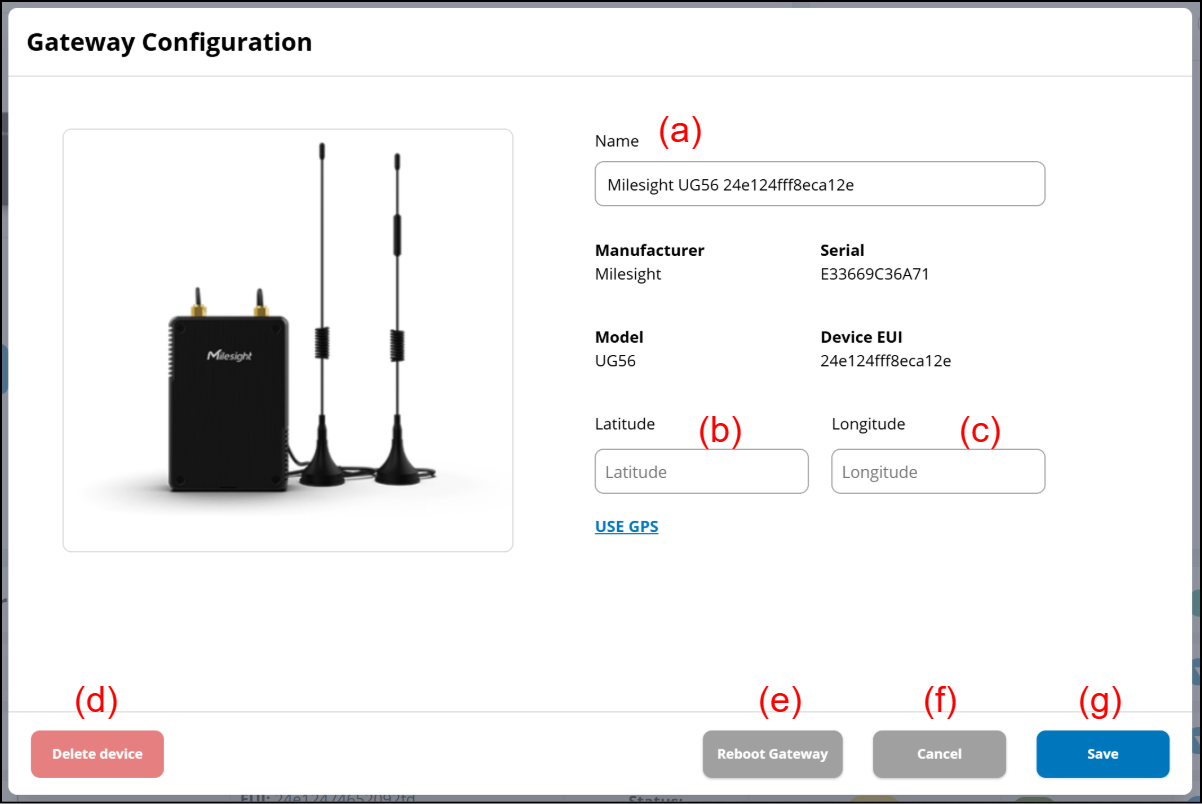
(a) Gateway name can be changed.
(b) Latitude can be set.
(c) Longitude can be set.
(d) Gateway can be deleted.
(e) Gateway reboots.
(f) Window closes.
(g) Details of changes are saved.
View Device Window
AM103
Press AM103 on the Gateway Dashboard to display this window.
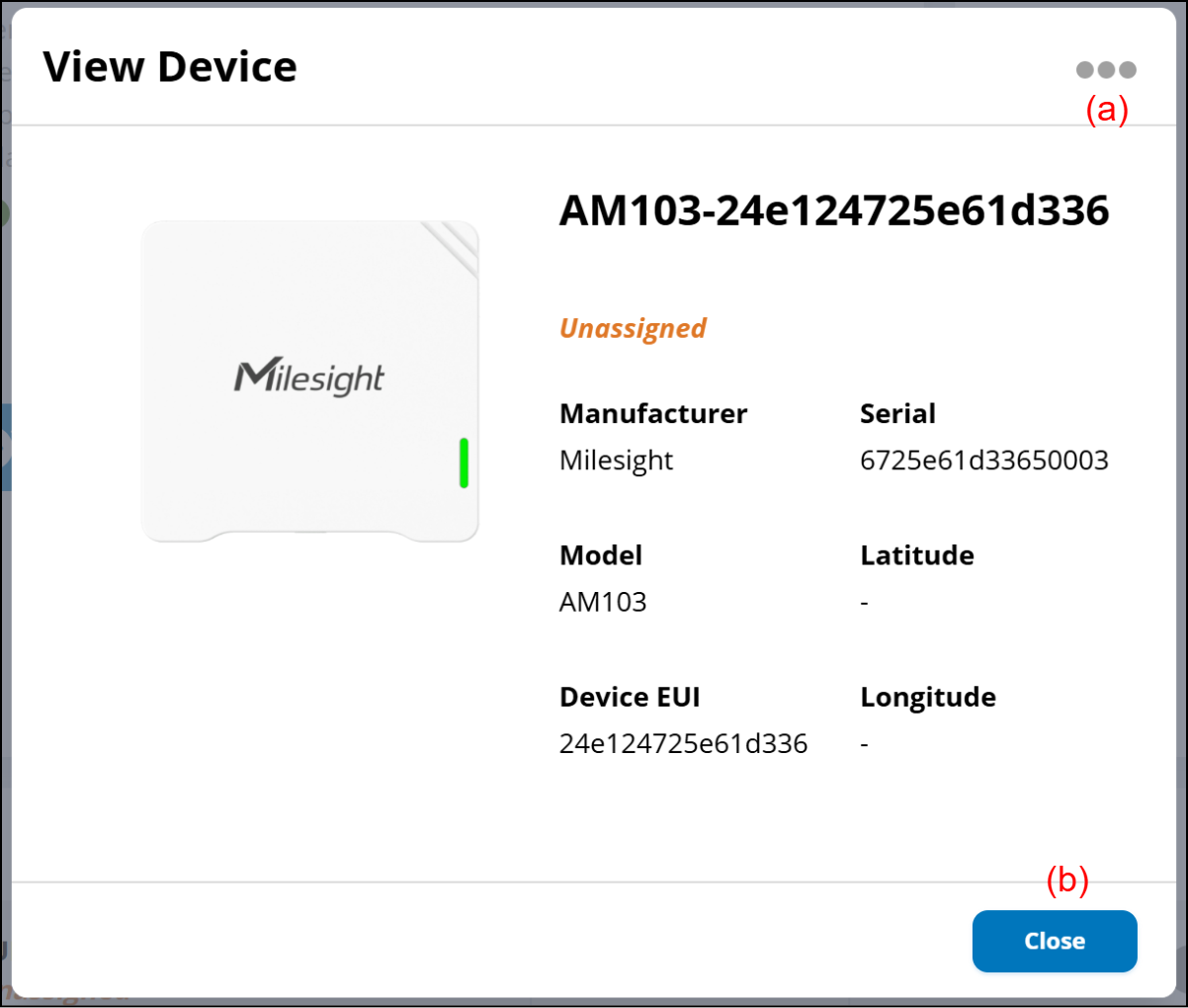
(a) Link menu
- [Edit]
Displays the "Edit Device" window.
(b) Close
Window closes.
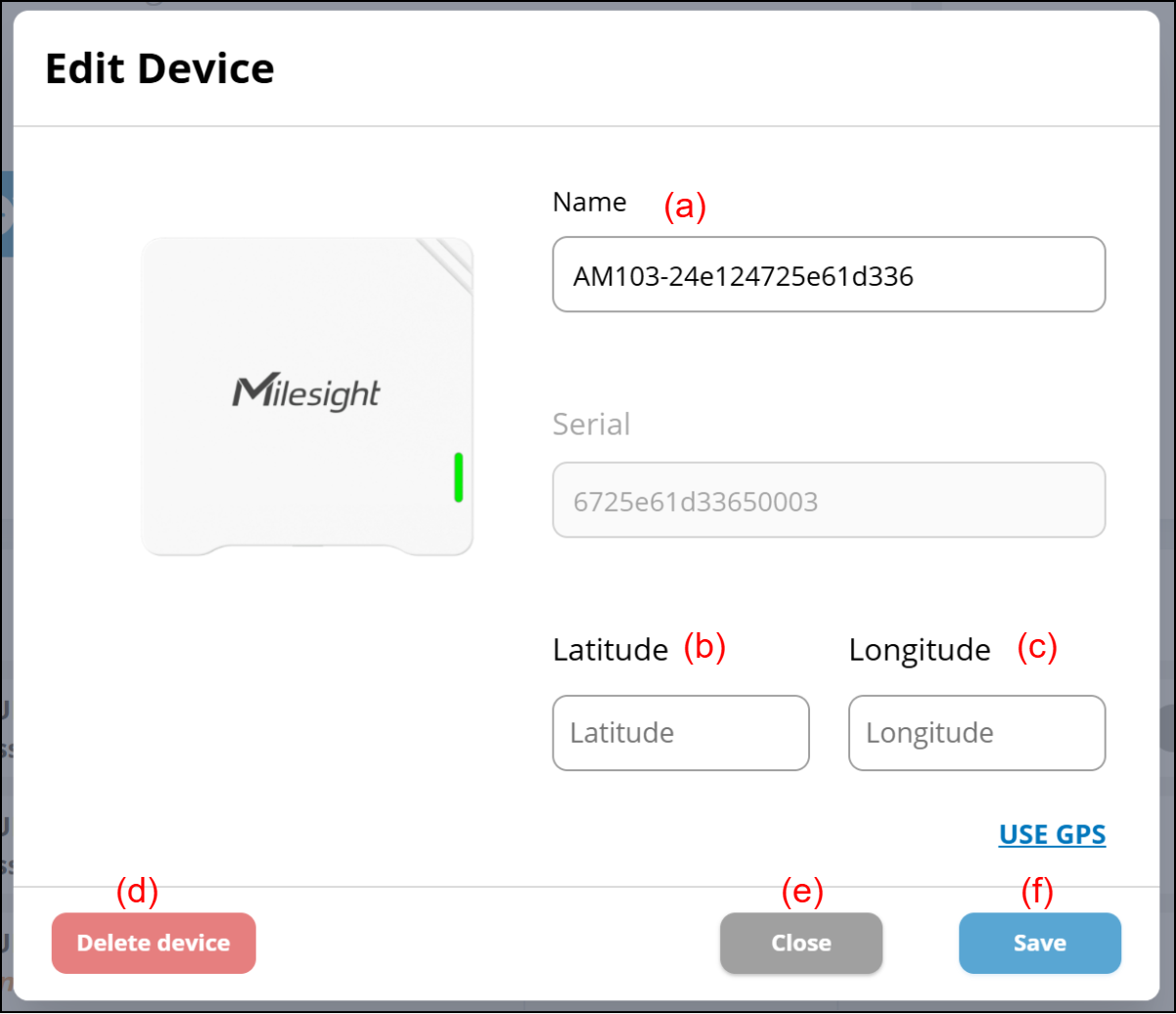
(a) Device name can be changed.
(b) Latitude can be set.
(c) Longitude can be set.
(d) Device can be deleted.
(e) Window closes.
(f) Details of changes are saved.
CT101/CT305
Press CT101/CT305 on the Gateway Dashboard to display this Window.
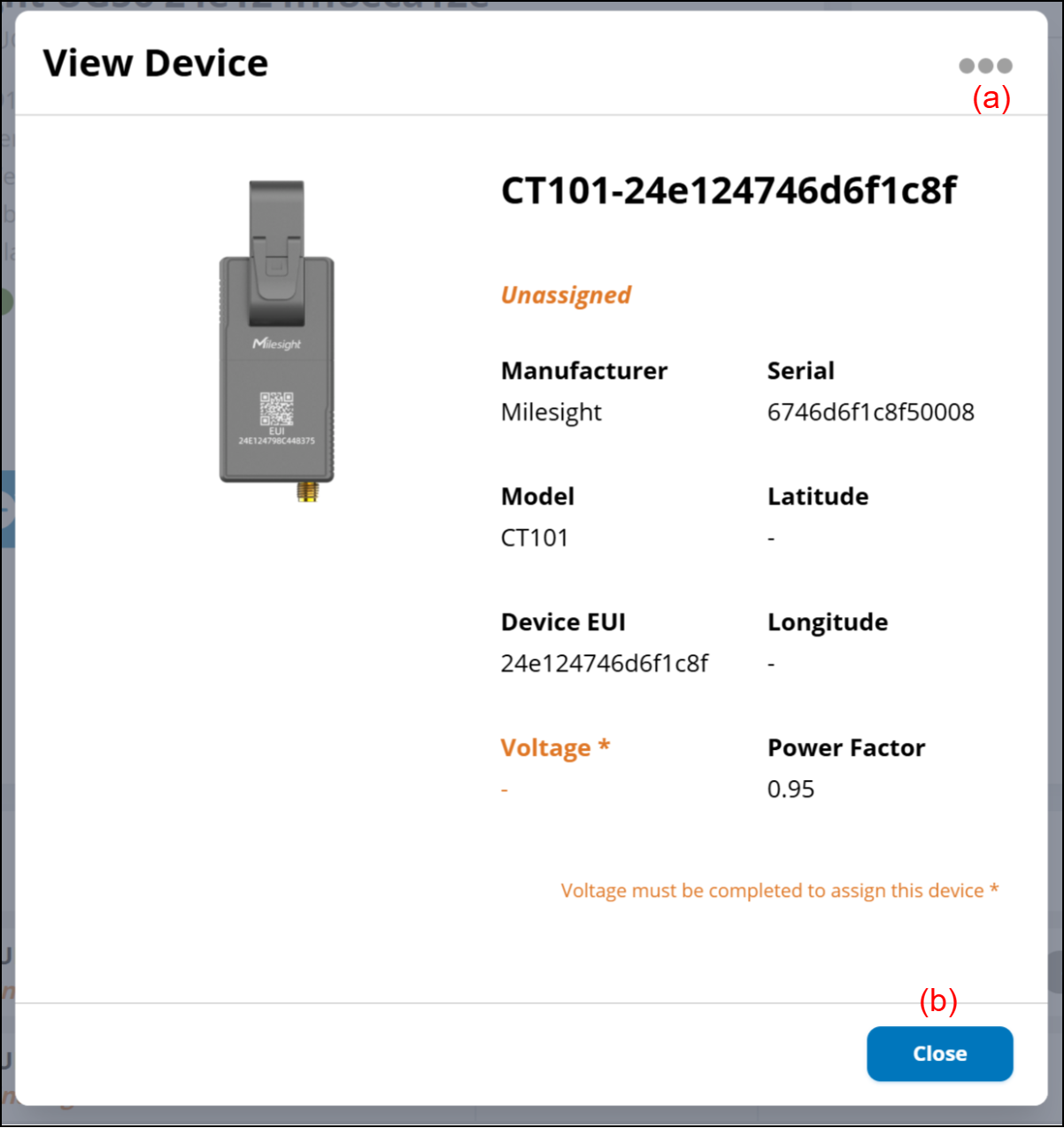
(a) Link menu
- [Edit]
Displays the "Edit Device" window.
(b) Close
Window closes.
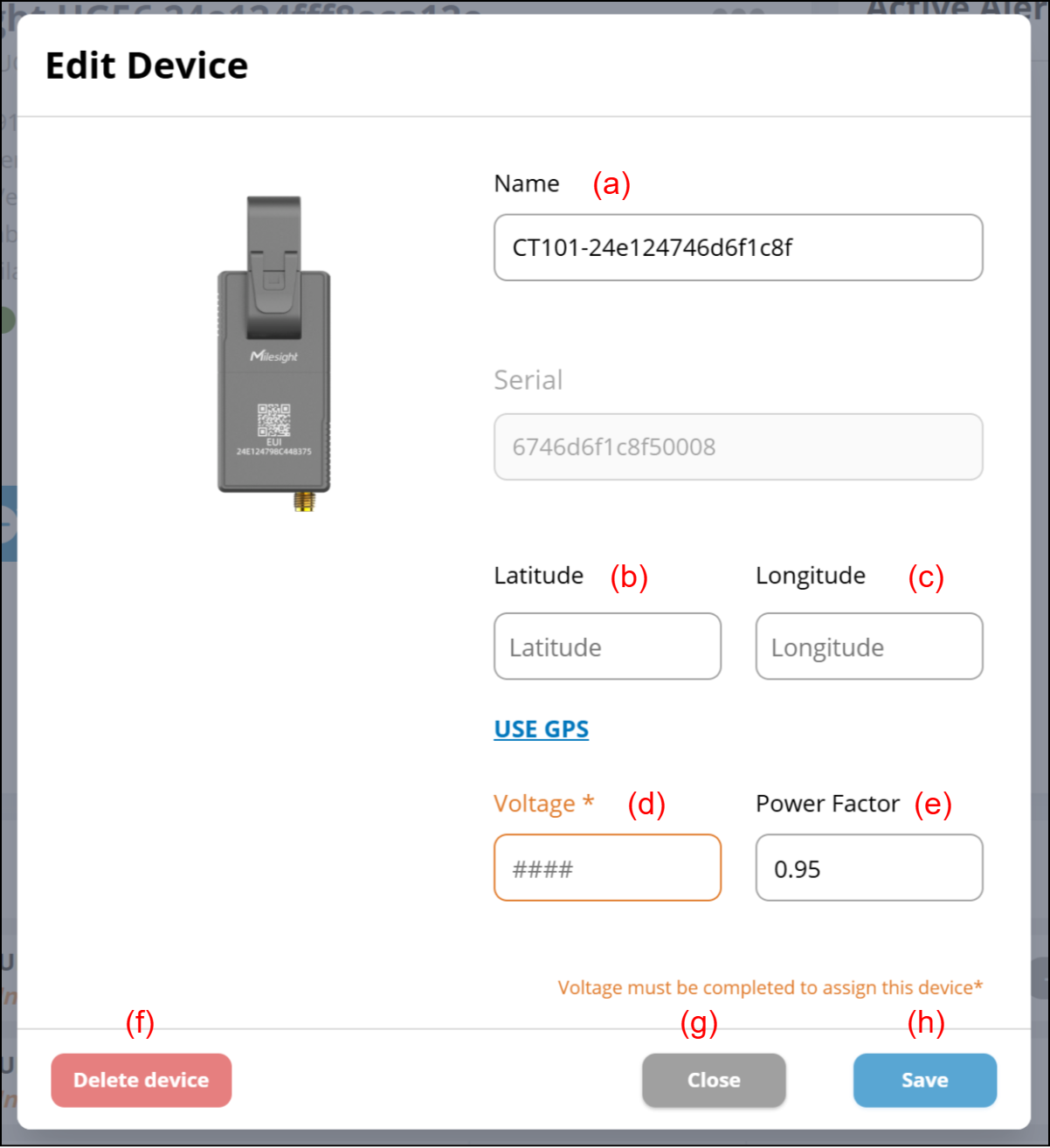
(a) Device name can be changed.
(b) Latitude can be set.
(c) Longitude can be set.
(d) Enter the voltage (V) to be measured in this CT. The default is not entered, and this CT cannot be assigned to Zone or DUC unless the voltage is entered.
(e) Enter the power factor. The default value of 0.95 is entered.
(f) Device can be deleted.
(g) Window closes.
(h) Details of changes are saved.
WT201
Press WT201 on the Gateway Dashboard to display this Window.
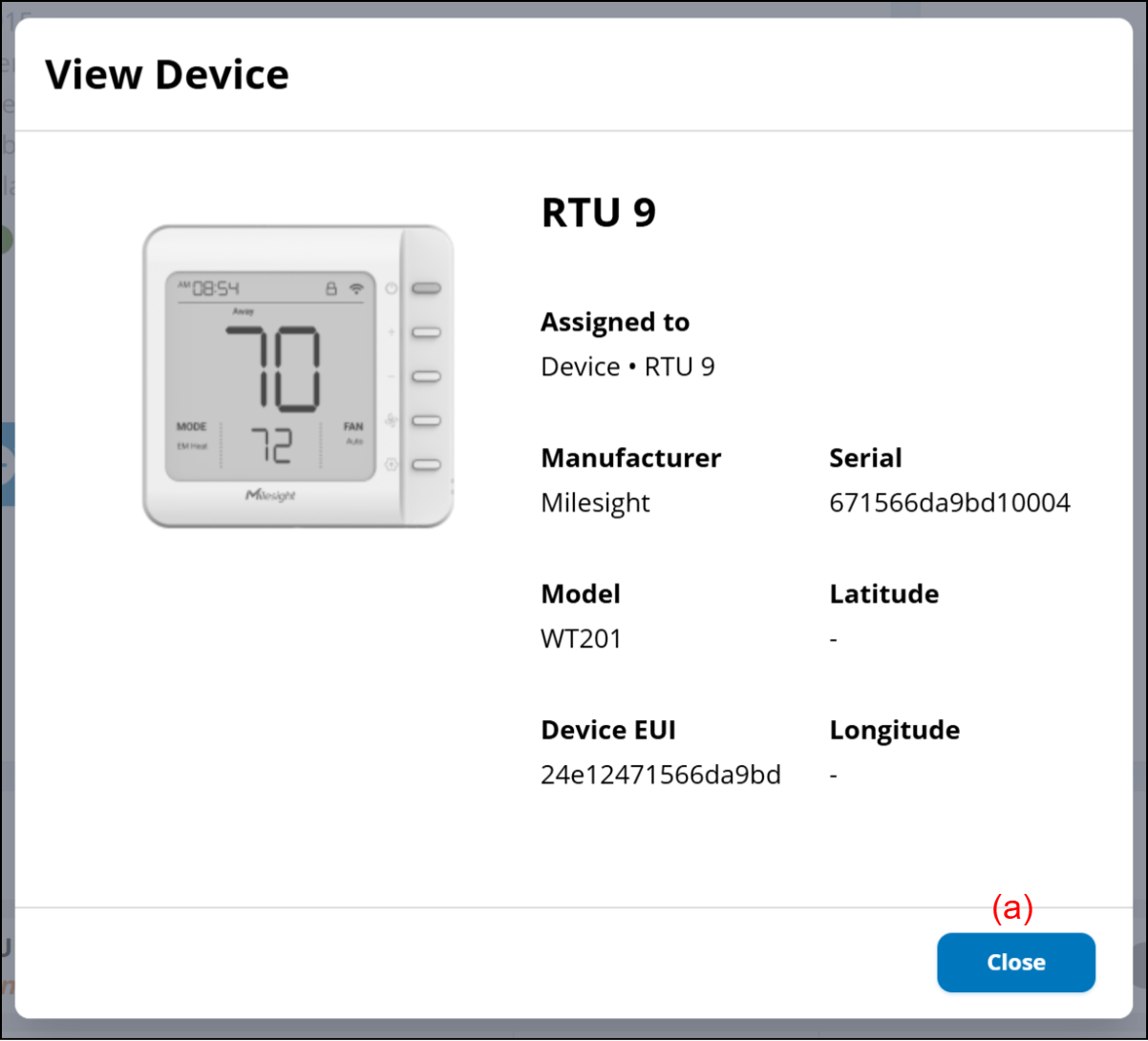
(a) Close
Window closes.