List display
The status of air conditioner can be checked in list format.
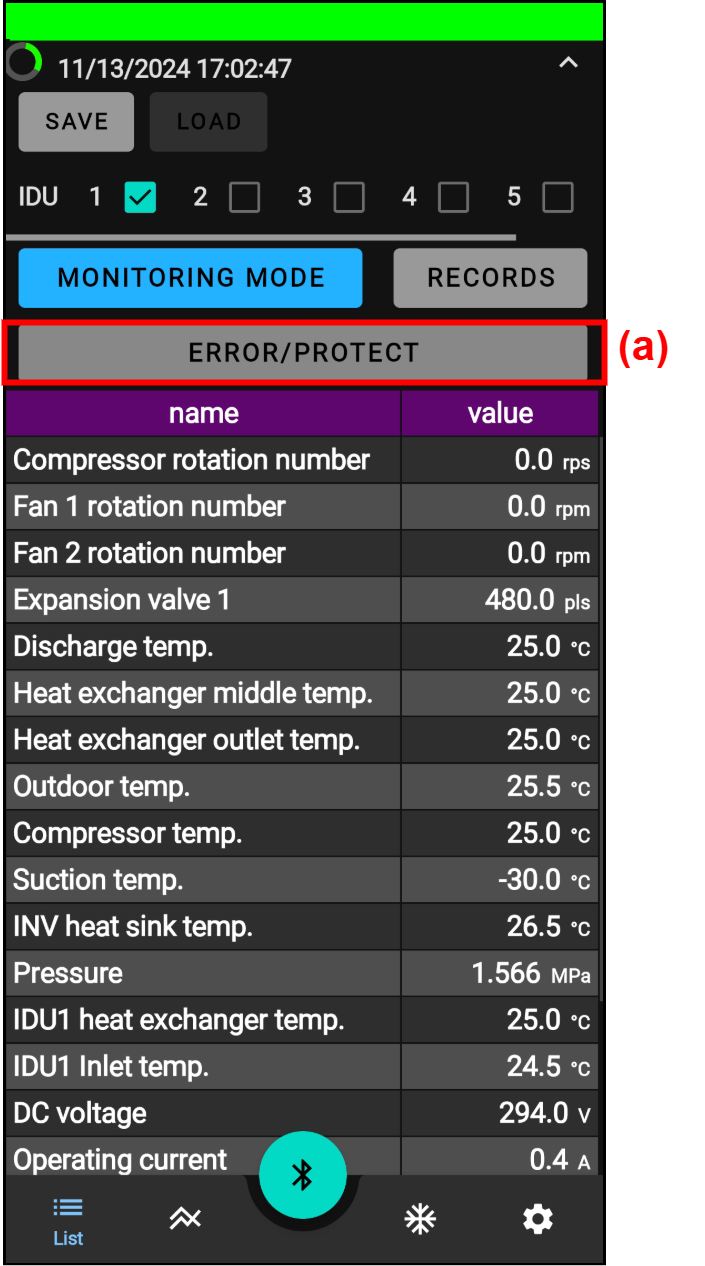
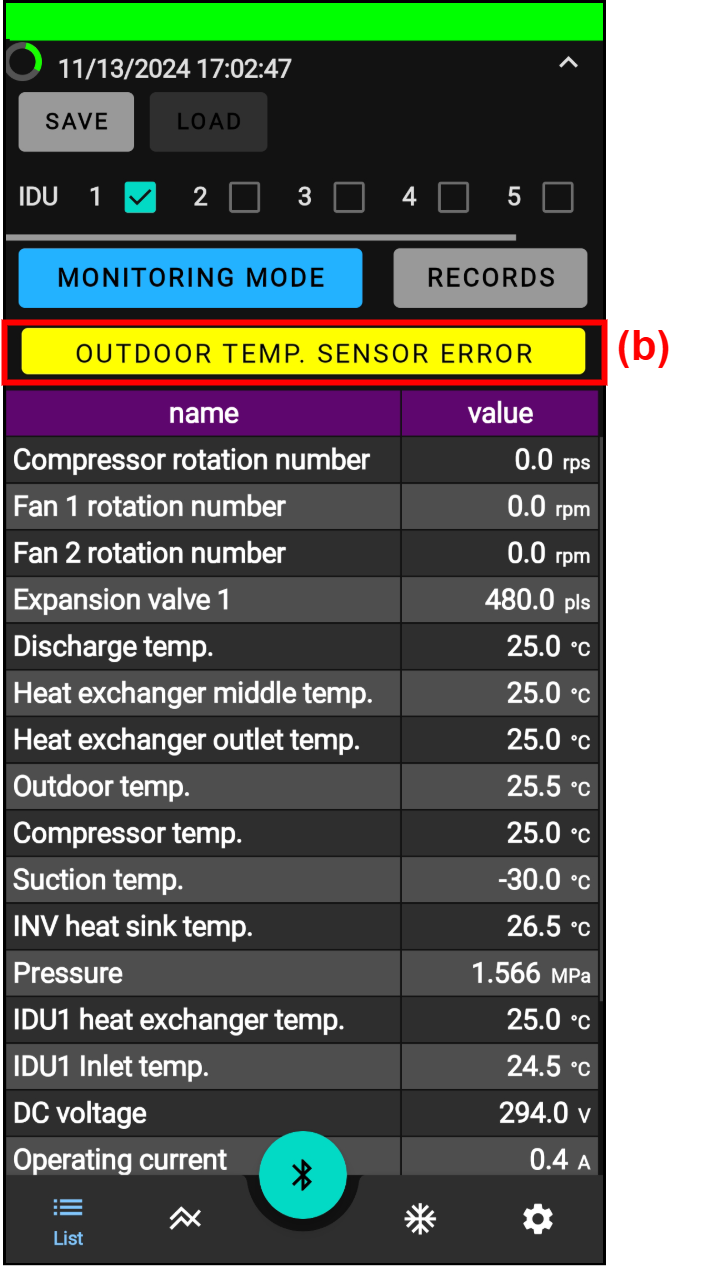
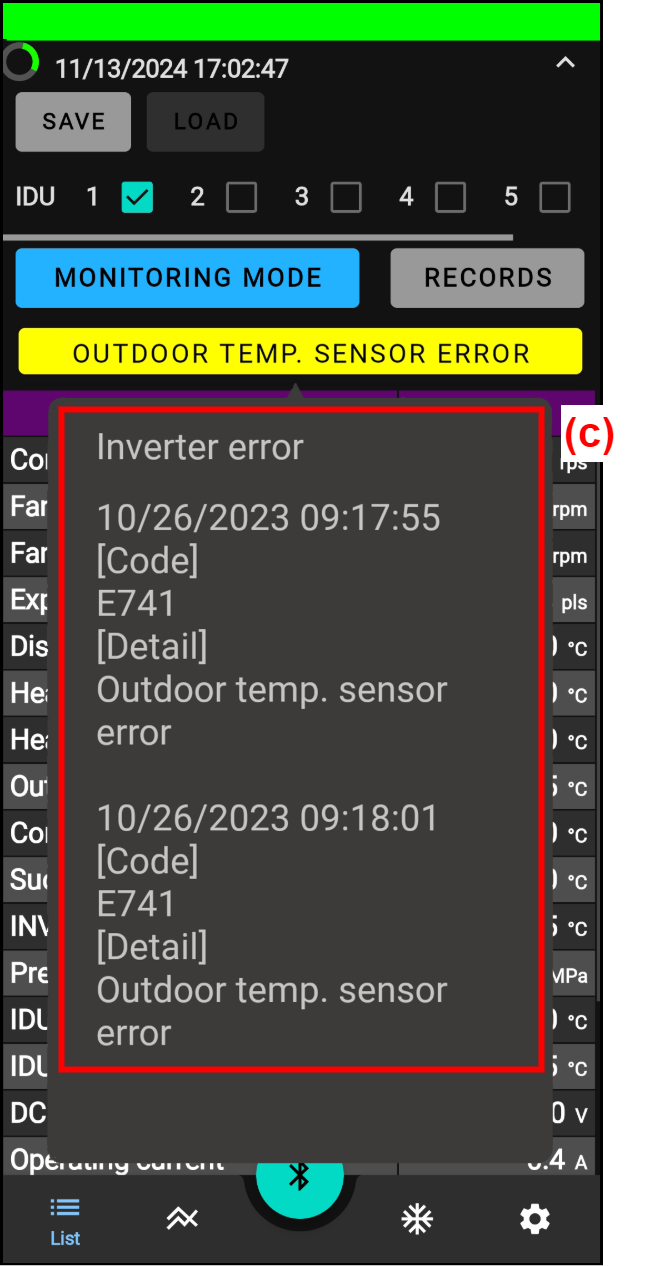
| (a) | Error history button | When an error occurs, the error history button turns yellow (b) and the error information is displayed. When the error history button is tapped in this state, the error details can be checked in a pop-up window (c). |
Mode switching
MONITORING MODE (Monitoring mode) |
RECORDING MODE (Recording mode) |
|
|
|
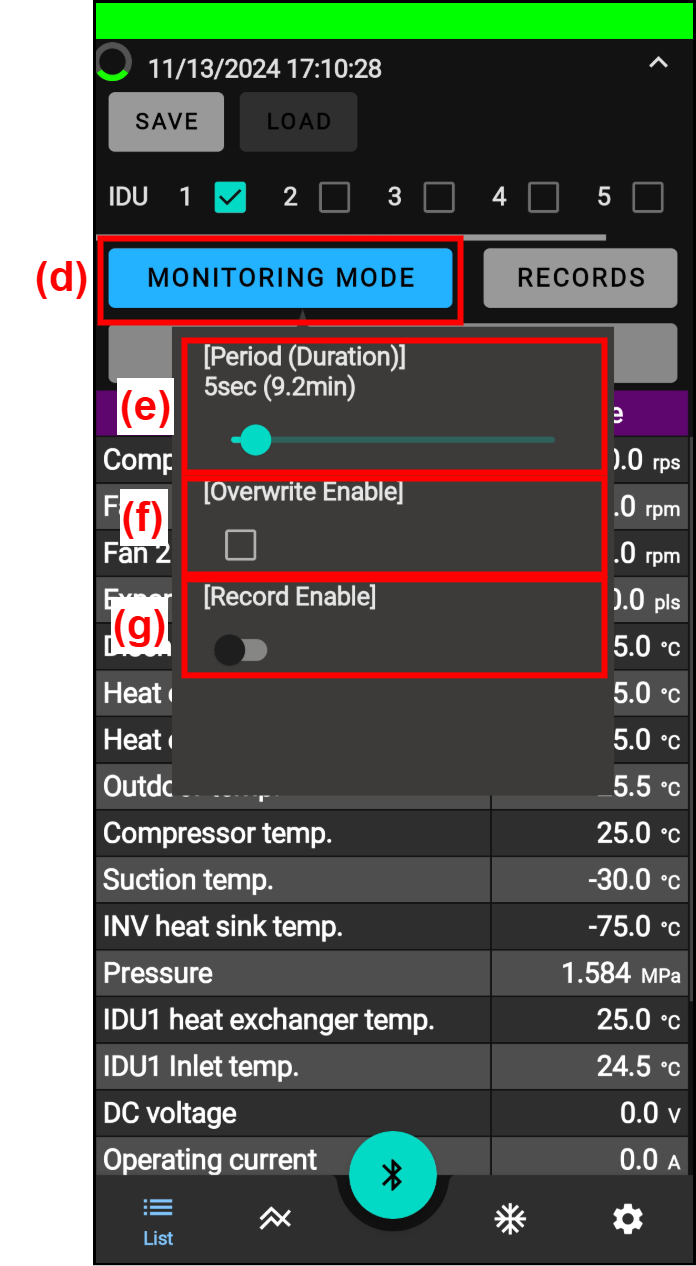
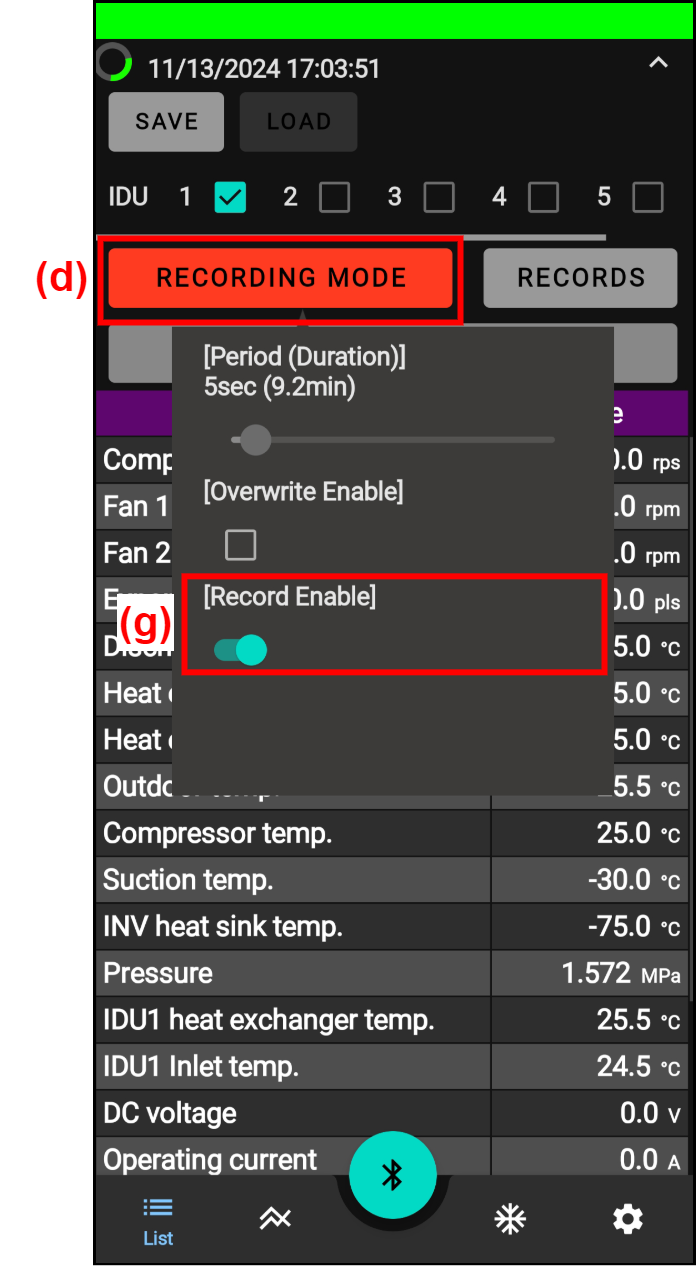
| (d) | Mode switching button |
When tapped, the pop-up screen is displayed to start or stop the recording of error history. |
||||
| (e) | Period (Duration) (Recording interval setting) bar | The interval for recording the error history is set. An estimate of the recording time is also displayed depending on the setting interval. |
||||
| (f) | Overwrire Enable (Error recording method setting) button |
If the same error occurs during recording, it is set whether to overwrite the information or not.
|
||||
| (g) | Record Enable (Record start) button |
The start and stop of recording are set.
|
 (Enable)
 (Disabled)
 (Enable)
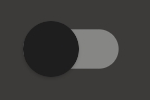 (Disabled)
RECORDS (Error history list)
If (h) is tapped while (d) is in MONITORING MODE (Monitoring mode), the recorded error histories can be checked.
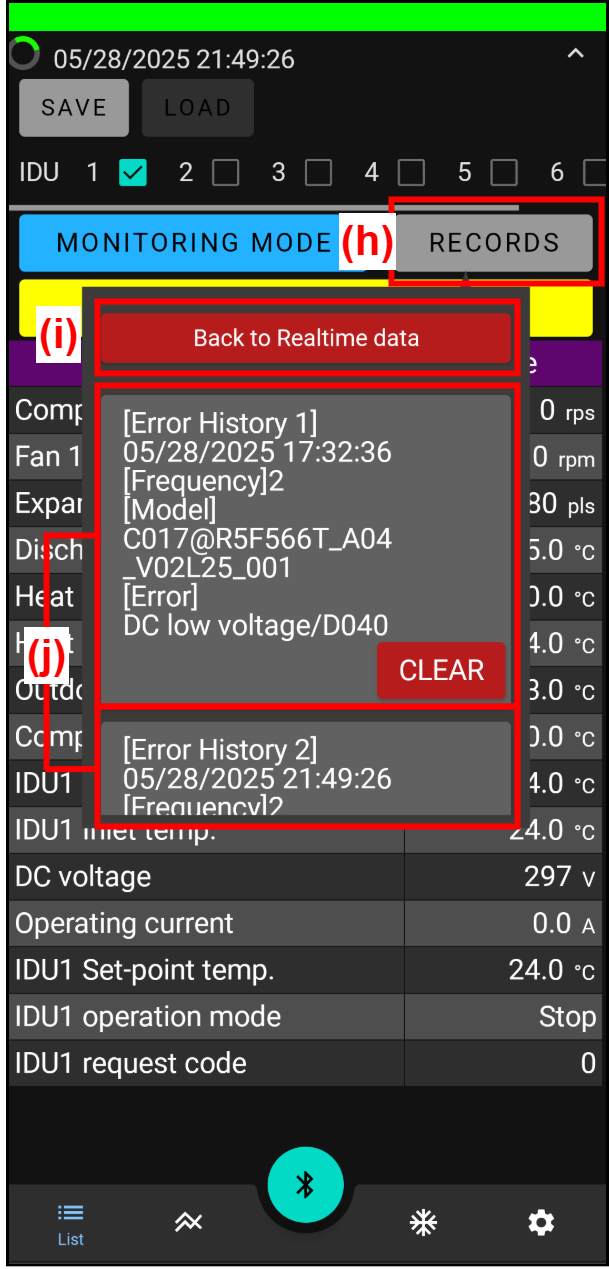
| (h) | RECORDS (Error history list) button | When tapped, a list of recorded error histories is displayed. (Up to 5 histories) | ||||||||
| (i) | Back to Realtime data (Back to real-time display) button | When tapped, the screen is back to real-time display. | ||||||||
| (j) | Error history read button |
The data of tapped error history is read. When “CLEAR (Clear)” is tapped, the error history is deleted.
|