HOW TO USE
When this app is started, the “List (List display)” screen is displayed.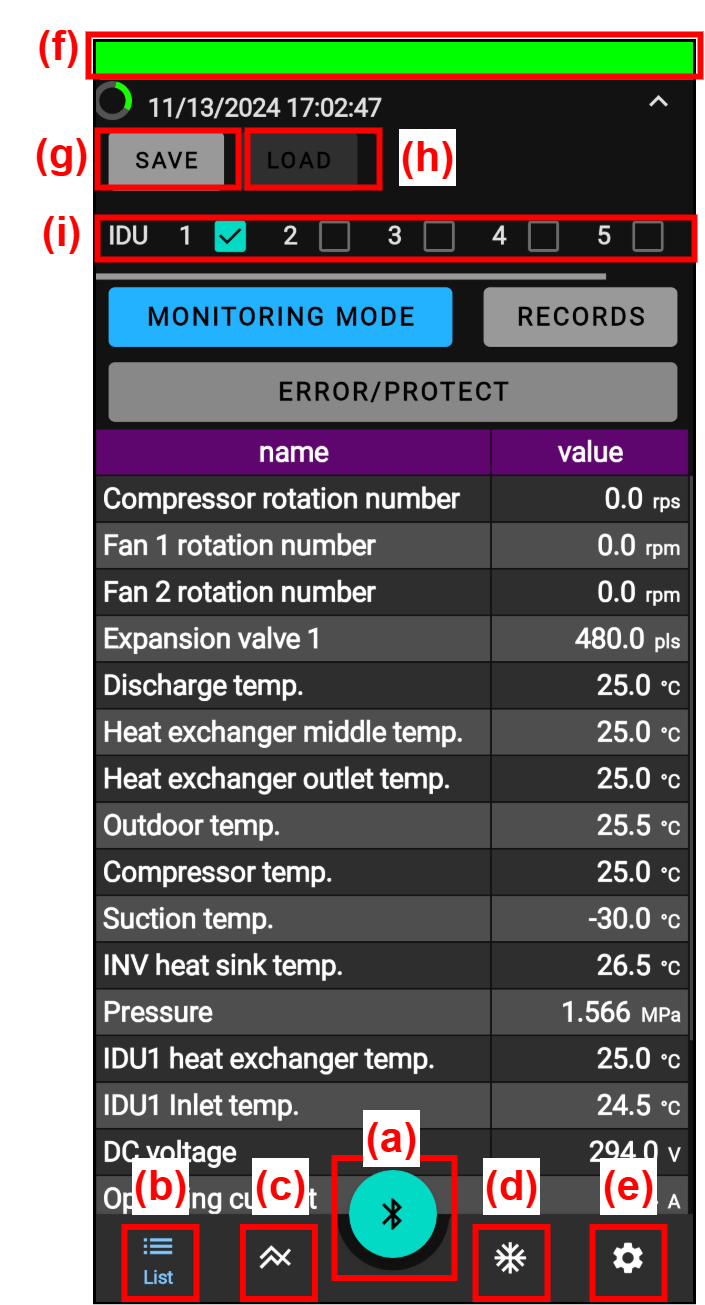
| (a) | Bluetooth connection (BLE connection) button | Use this button to connect this app to BLE adapter. |
| (b) | [List (List display)] button | When tapped, the operating data and error information are displayed in list format. |
| (c) | [Chart (Chart display)] button | When tapped, the operating data and error information are displayed in chart format. |
| (d) | [Cycle (Refrigeration cycle diagram display)] button | When tapped, the operating data and error information are displayed in refrigeration cycle diagram format. |
| (e) | [Settings] button | When tapped, the initial settings of this app can be performed. |
| (f) | Communication status display | Color varies depending on the communication status. |
| (g) | [SAVE (Data save)] button | When tapped, operating data can be saved. In the default settings, the save destination is the Download folder. |
| (h) | [LOAD (Data load)] button | When tapped, operating data can be loaded. Operating data of conventional monitoring tools can also be loaded. * Loading cannot be performed during BLE communication. To load the operating data again, disconnect the BLE connection. |
| (i) | Indoor unit selection button | Only operating data of selected indoor unit can be displayed. The numbers are assigned in the order of 1, 2, 3... from the bottom of the outdoor unit's separation tube. |
Communication status (f)
| During communication |
|
| Retry connection |
|
| Disconnected |
|



Display of operating data
For chart display legend and refrigeration cycle diagram display, abbreviated names are used for the item names of operating data.
For details, refer to “List of operating data names”.
When the model of ATW Split is connected, some of the operating data (Flow rate, Pump settings, and Pump state, etc.) of indoor unit side are not displayed.